
Cookie Information Setup Guide

This guide helps you set up cookies correctly on your webshop so that you can use ViaAds. Setting up the ViaAds cookie is essential for your webshop to use the ViaAds marketing solution, so if you run into problems with this guide, or with anything else related to the material from ViaAds, contact Christian Engholm by phone on (+45) 51995555 or by email at cen@viabill.com.
This guide assumes that your webshop already uses Cookie Information as its cookie consent provider to manage your cookies. If you use another cookie consent provider, this guide does not apply.
Creating ViaAds as a Data Processor
- Log in at app.cookieinformation.com
- Select the domain of the webshop that is to have the ViaAds Cookie implemented
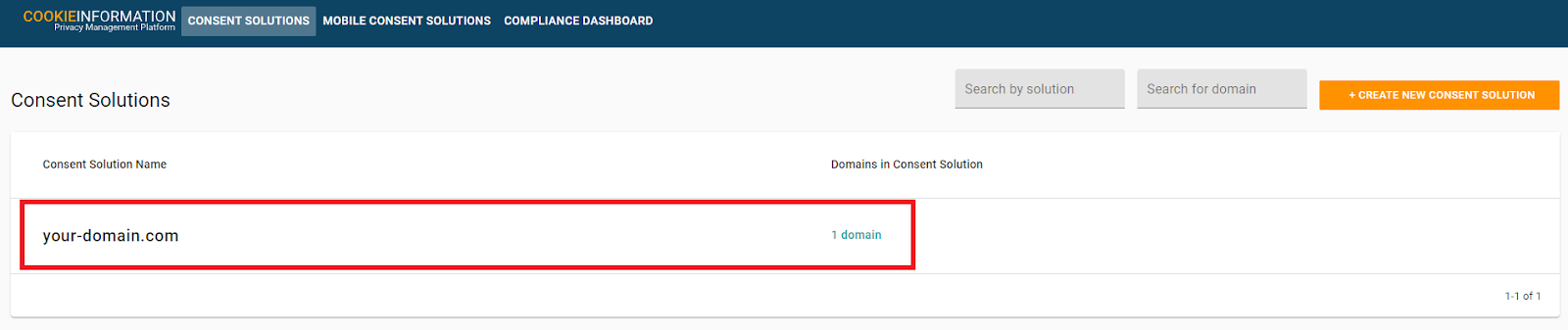
- Select Cookie Settings
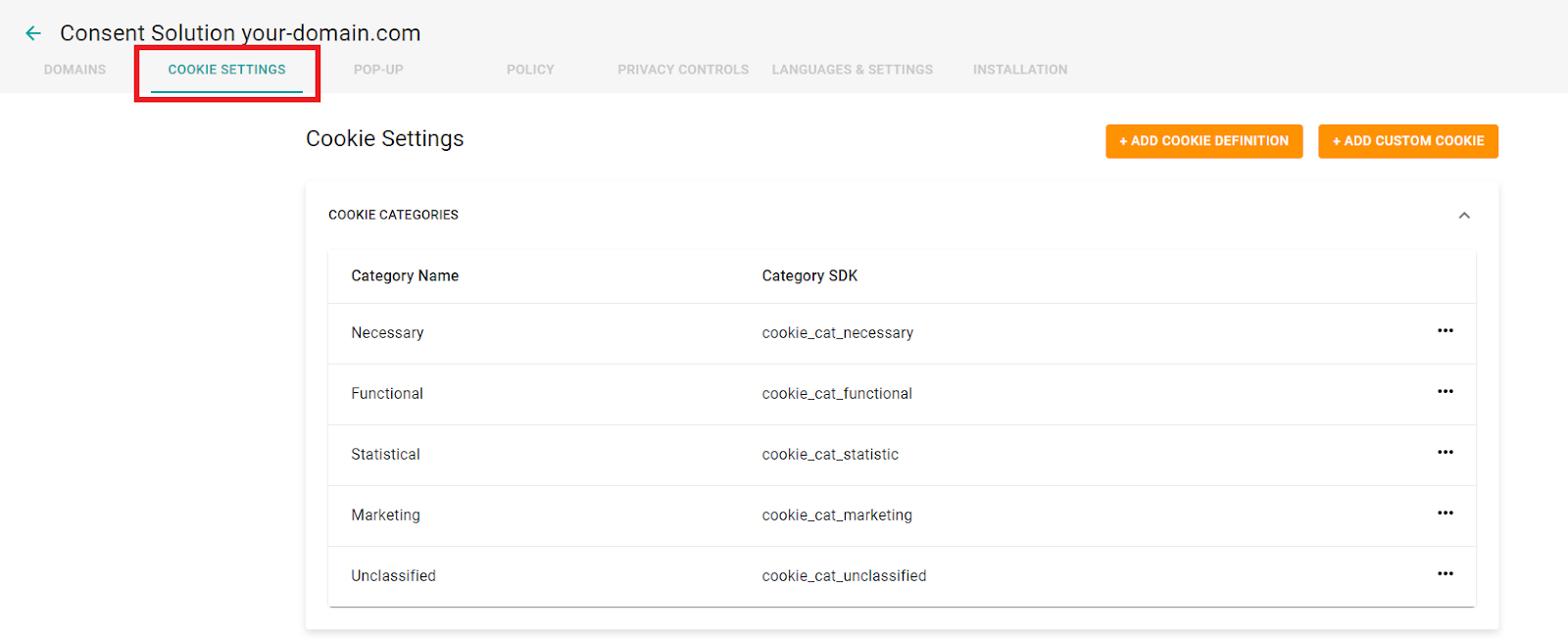
- Select Add Custom Cookie
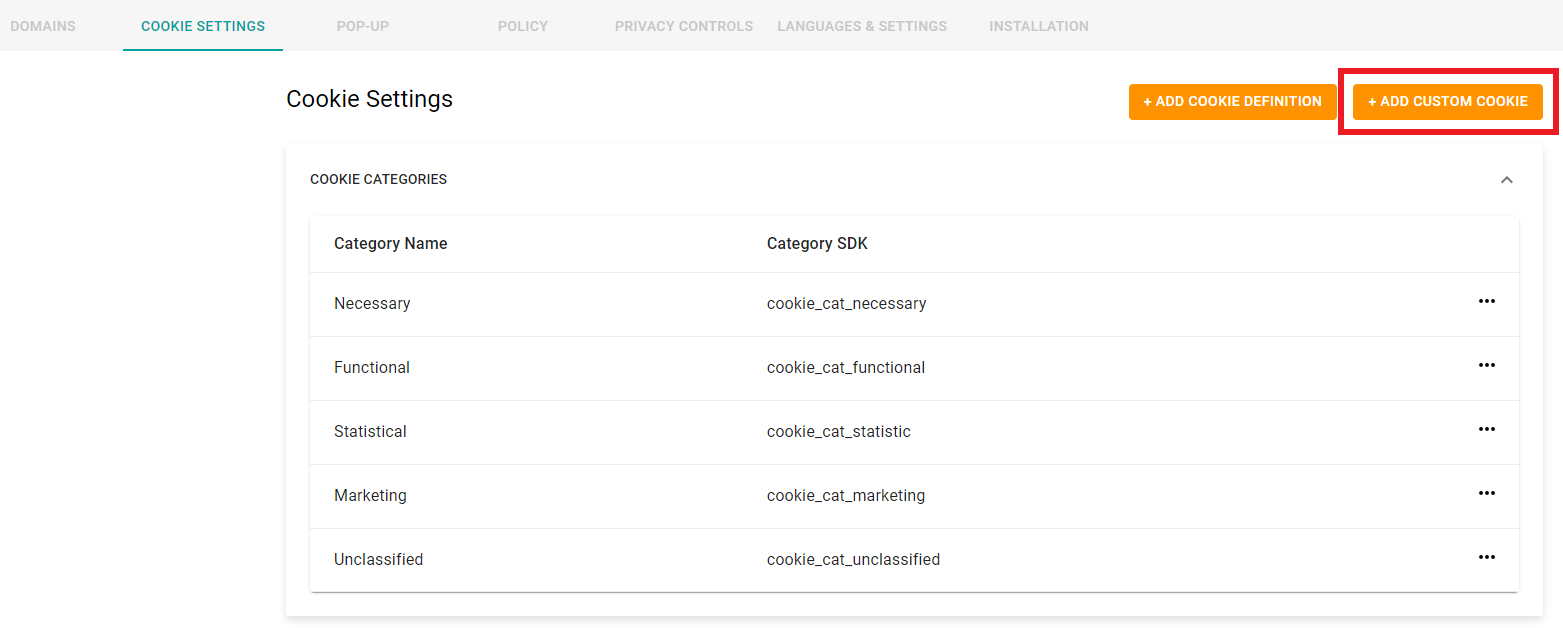
- Fill in the modal with the following information (Replace you-domain.com with your own domain) and then select Create
In the Cookie name field, enter ViaAds
In the Cookie domain field, enter your own domain name
In the Cookie persistence field, select Expiring
In the Cookie expiry field, select a year
- Then select Create
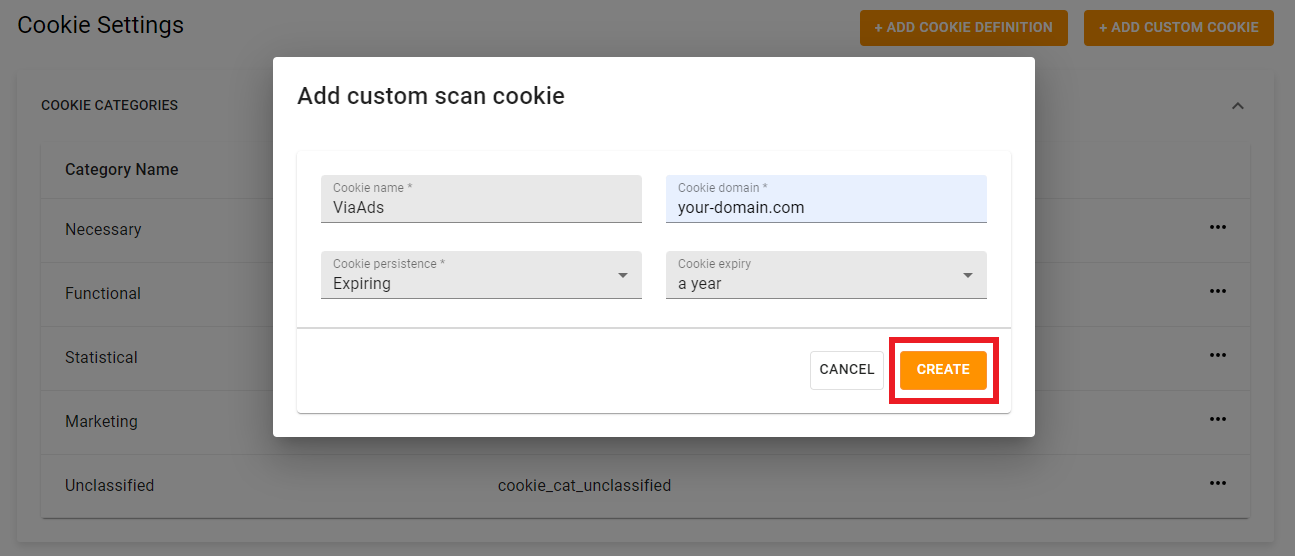
- The newly created cookie now appears under Custom Cookies as follows:

- Then select Add Cookie Definition
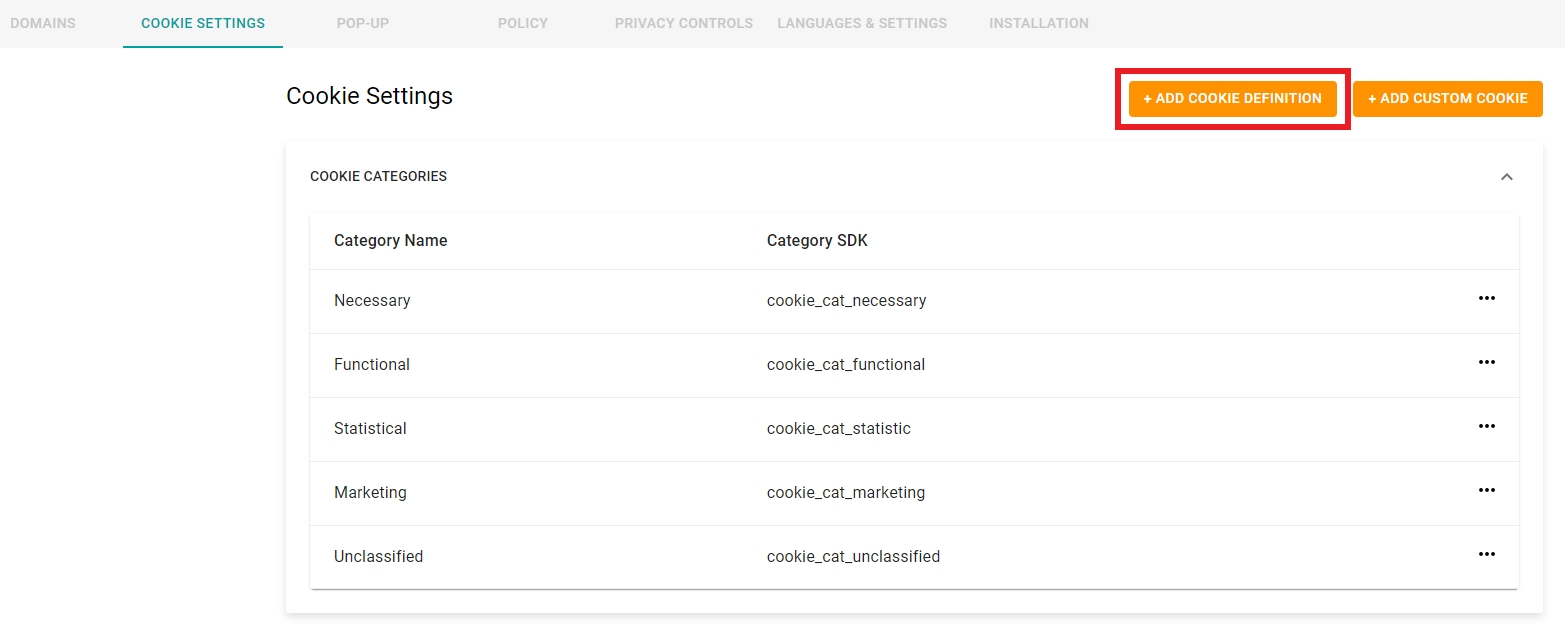
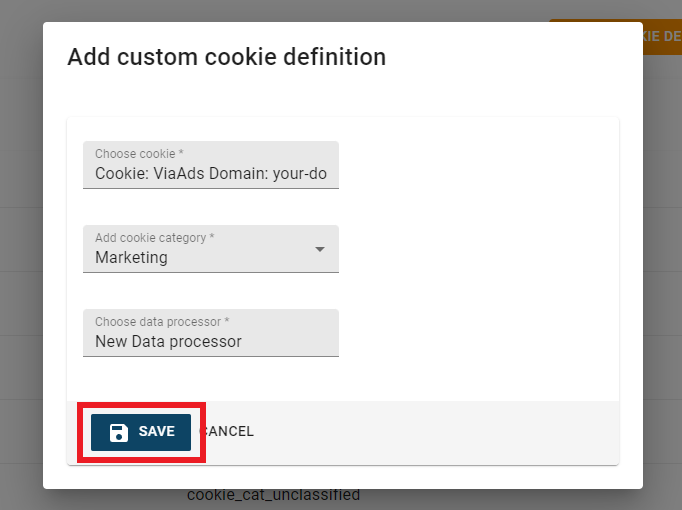
- Fill in the modal as follows:
Choose cookie: Select Cookie: ViaAds Domain: (your domain name)
Add cookie category: Marketing
Choose data processor: Select New Data Processer (Type New Data in the field, and the option will appear in the list)
- Select Save
- The newly created Cookie Definition now appears in the list Cookie Definitions
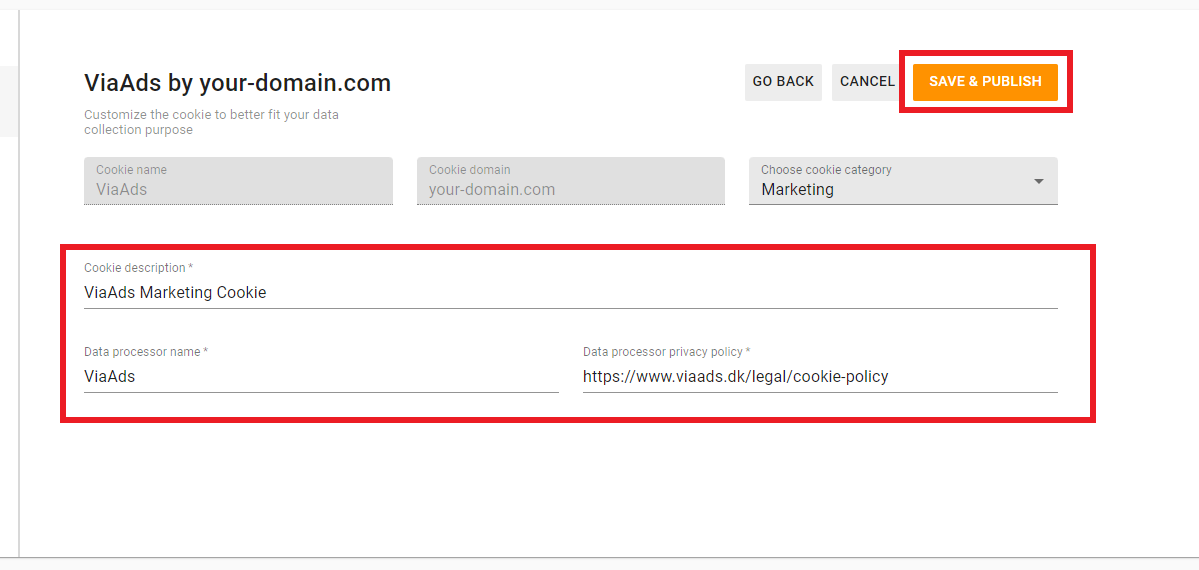
- Click the three dots on the right-hand side and select Edit

- Fill in the page with the following details:
Cookie description: ViaAds Marketing Cookie
Data processor name: ViaAds
Data processor privacy policy: https://www.viaads.dk/legal/cookie-policy
- Then select Save & Publish
- A pop-up opens with the text "Are you sure you want to save and publish changes?" - Click Save
ViaAds now appears in the list of cookies in the pop-up on the domain.
Setting up the ViaAds Cookie functionality
- Select Go Back
- Select Pop-up
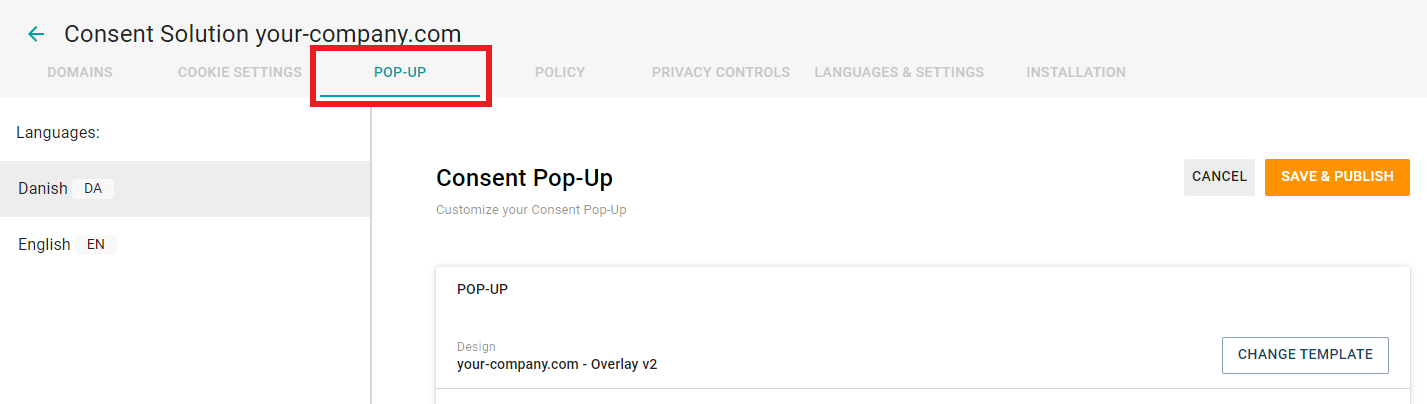
- Scroll down and click Advanced Settings
- Then scroll further down to the bottom of the page and find JavaScript functions
- Scroll to the bottom of JavaScript functions and select the last input line
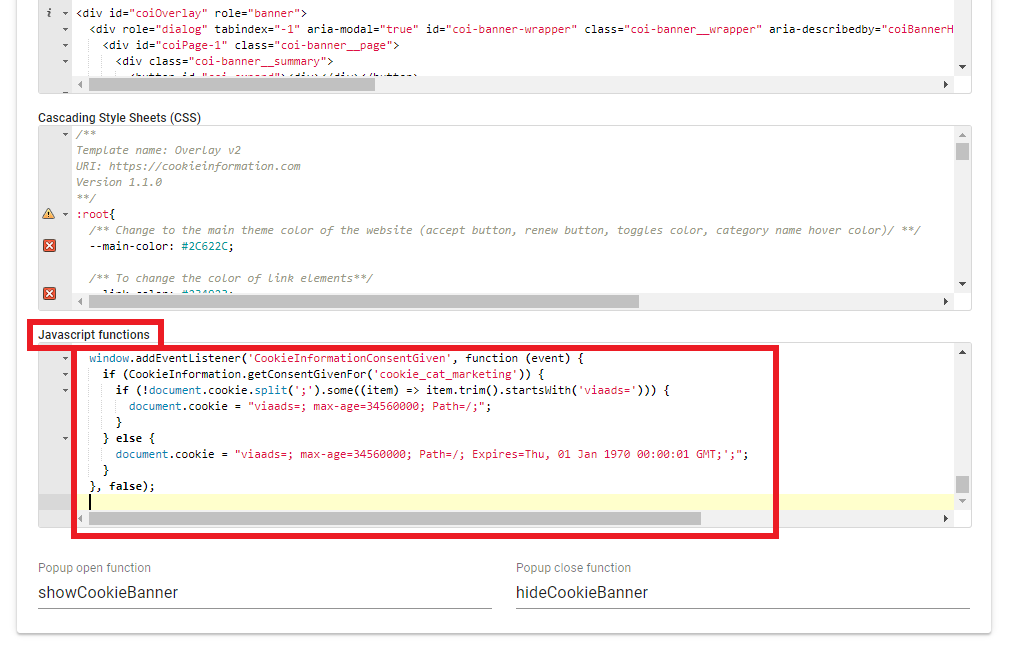
- Paste the following code snippet on this line:
window.addEventListener('CookieInformationConsentGiven', function (event) { if (CookieInformation.getConsentGivenFor('cookie_cat_marketing')) {if (!document.cookie.split(';').some((item) => item.trim().startsWith('ViaAds='))) { document.cookie = "ViaAds=; max-age=34560000; Path=/;"; } } else { document.cookie = "ViaAds=; Path=/; Expires=Thu, 01 Jan 1970 00:00:01 GMT;';"; } }, false);
- Scroll to the top of the page and select Save & Publish
- A pop-up opens with the text "Are you sure you want to save and publish changes?" Click Save
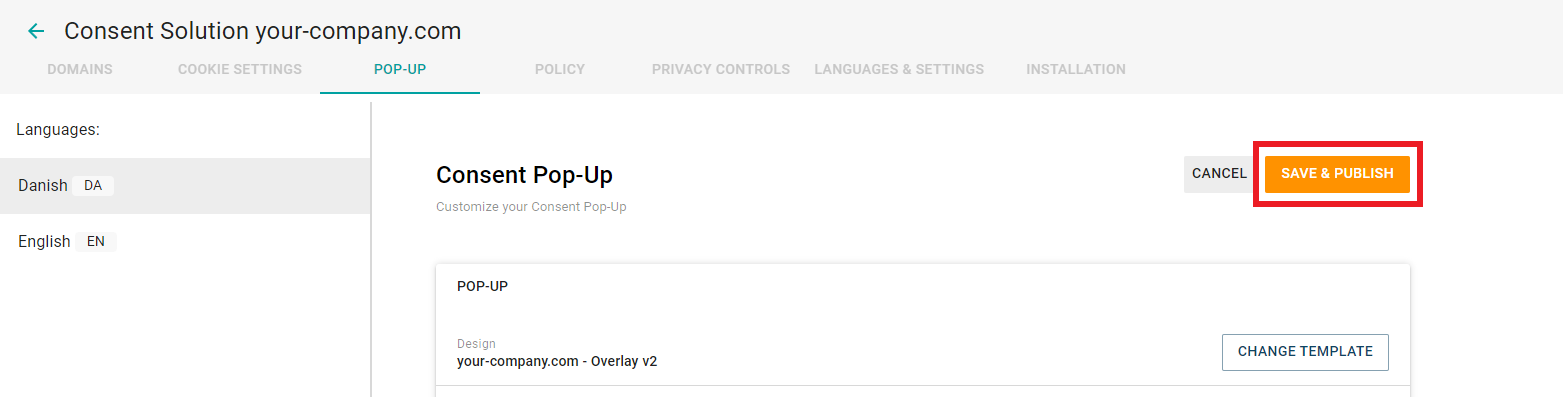
It can take up to 10 minutes for the changes to take effect on the webshop. Please wait those 10 minutes before carrying out the next step of the guide, as behavioural data may otherwise be lost.
Send a new pop-up consent request
Existing customers must be asked for consent again once ViaAds has been added to the list. This is done as follows:
- Select the Languages & Settings tab
- There, select Push For Consent
- A pop-up opens with the text "Are you sure you want to push for consent" - click Show Consents
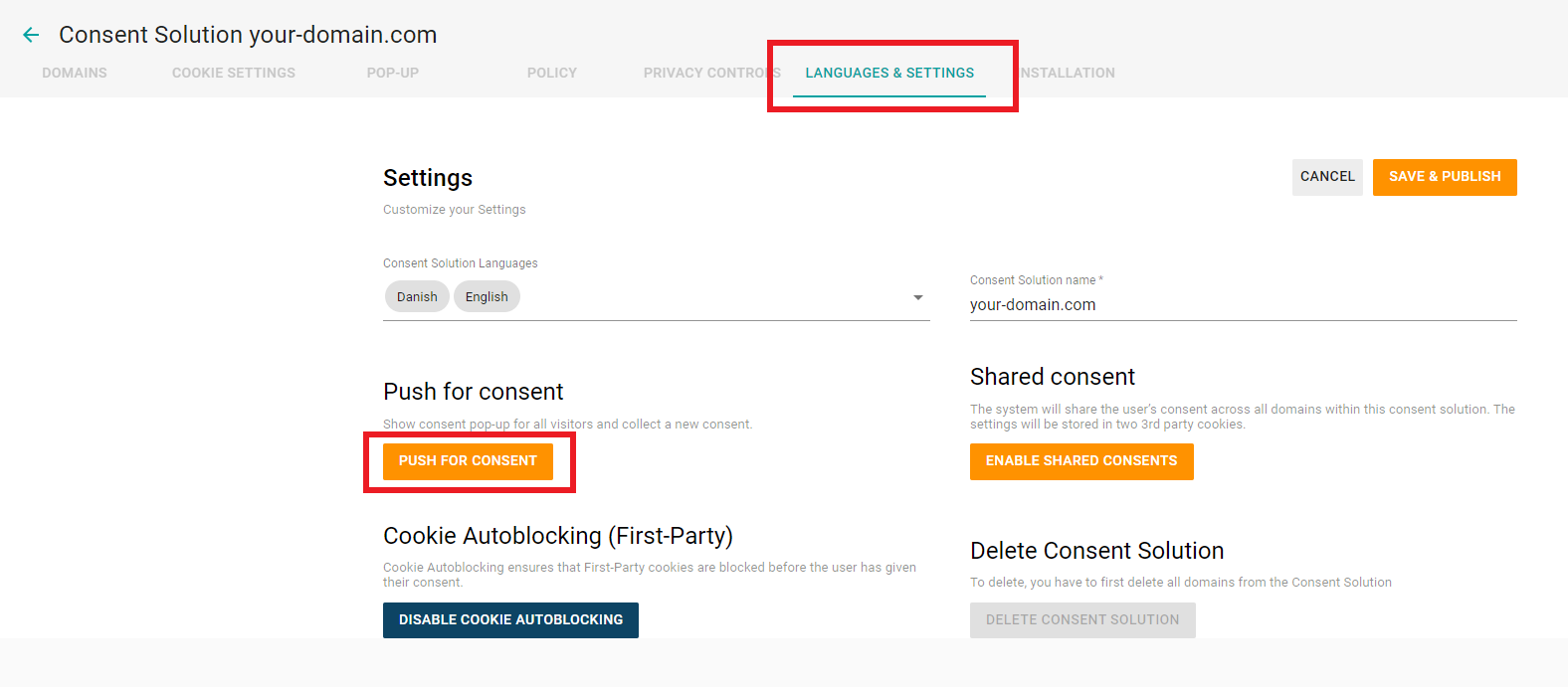
All visitors, regardless of whether they have given consent before, will now be asked to decide again on their next visit to the shop.